Showing posts with label Cluster. Show all posts

Sunday, September 24, 2006

Reliable Singleton OC4J Instances on OracleAS

I was working on a customer question this week which revolved around the ability to ensure a highly available singleton OC4J instance in OracleAS. After mucking about and looking around I remembered a feature that is designed to provide exactly this called Service Failover. It is documented here:

http://download-west.oracle.com/docs/cd/B25221_04/core.1013/b15976/common.htm#sthref631

but I think a picture illustrates better what I was trying to do and then the implementation of it is a lot easier to follow. Figure 1 below shows the idea:
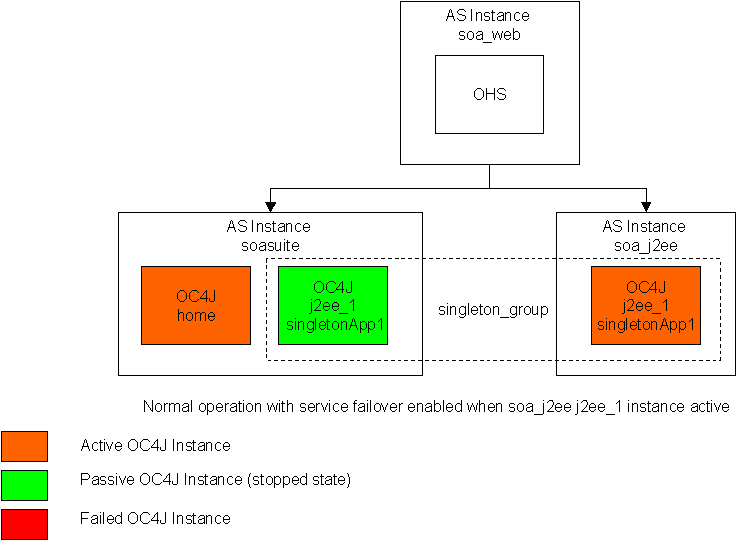

Figure 1: Active Singleton OC4J Instance

Here you can see the orange OC4J instance named j2ee_1 in an OracleAS instance called soa_j2ee as the singleton, active node. It is part of a group of OC4J's called singleton_group where there is another stopped OC4J instance called j2ee_1 in an OracleAS called soasuite (for arguments sake on another hardware node assuming that the redundancy we are seeking is to deal with hardware failure).

When j2ee_1 in OracleAS instance soa_j2ee fails, the action I want is illustrated in figure 2
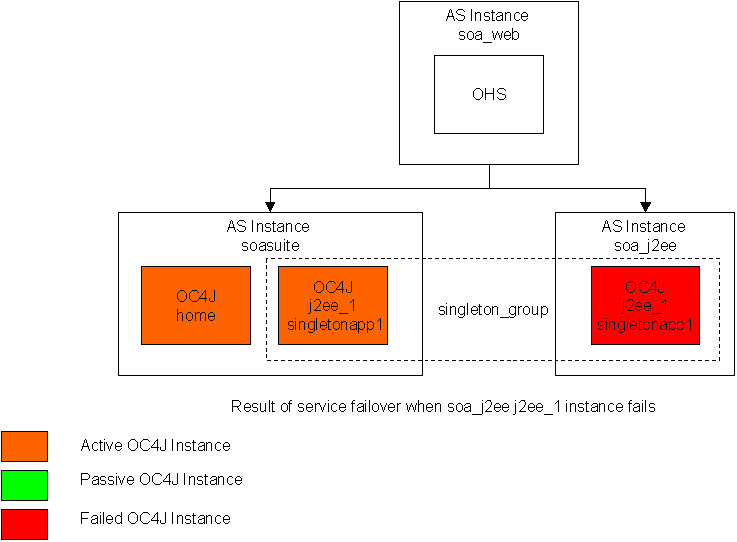

Figure 2: Singleton Instance Failed Over to New Singleton

When my singleton OC4J went down, the application server noticed it and immediately started up the backup OC4J in another part of the cluster, the OracleAS instance soasuite.

Ideally, depending on my requirement for redundancy I could carry this scenario on on many different nodes. The question is how? Turns out it is a very simple feature to implement.

The trick is with the process service (OPMN) that is watching over an OracleAS cluster. The lines that start an OC4J instance in the process server XML configuration file (opmn.xml) typically look like this with much of the extra bit deleted for simplicity here:

<ias-component id="singleton_group" status="enabled">
<process-type id="j2ee_1" status="enabled" >
<module-data>
<category id="start-parameters">
<data id="java-options" value="-server -Djava.security.policy=$ORACLE_HOME/j2ee/j2ee1/config/java2.policy -Djava.awt.headless=true -Dhttp.webdir.enable=false"/>
...
<process-set id="singleton_group" numprocs="1">
</process-type>
</ias-component>


The crux of it is OPMN is providing parameters for the JVM(s) that start the application server, port ranges (because there will be many OC4J's running in a cluster) and miscellaneous other settings.

To turn on a failover policy that says I want 1 and only one of these OC4J instances running in a cluster I simply need to add two parameters:

  • service-failover="1" - to indicate I want only one of these OC4J's in my cluster
  • service-weight="100" - an arbitrary logical weighting that will give OPMN a preference which of the configured failover instances I want the server to start in the event of a failure of another. A larger number means OPMN will prefer starting the failover instance than one configured with a smaller number
For a single OC4J instance configured with this service failover, the configuration looks like this:

<ias-component id="singleton_group" status="enabled">
<process-type id="j2ee_1" status="enabled"
service-failover="1" service-weight="200">
<module-data>
<category id="start-parameters">
<data id="java-options" value="-server -Djava.security.policy=$ORACLE_HOME/j2ee/j2ee1/config/java2.policy -Djava.awt.headless=true -Dhttp.webdir.enable=false"/>
...
<process-set id="singleton_group">
</process-type>
</ias-component>

Also note that on the process-set id I removed the numprocs="1" as service-failover does not support numprocs (i.e. multi-JVM).

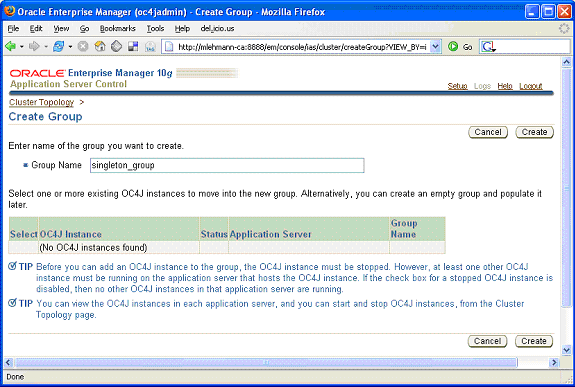
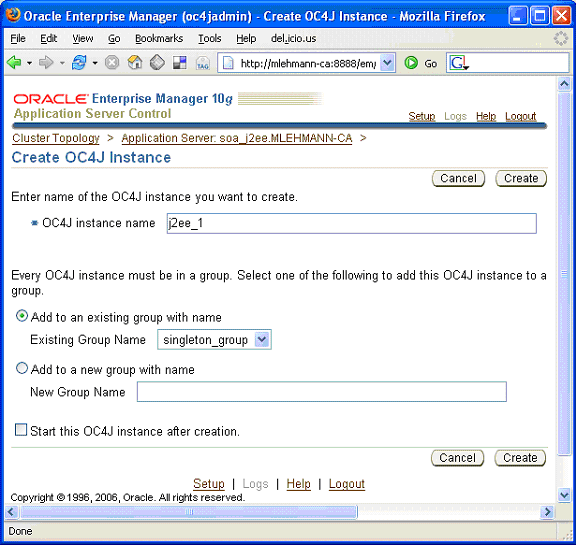
The trick on this one is that the OC4J instance name has to be the same (in my case j2ee_1) and the group in which the OC4J instance resides also has to be identical (in my case you can see my group is called singleton_group).

If you were to look at my other OracleAS instance you would see an identically configured OC4J instance with the same group and same OC4J instance name. Setting up the topology of groups and OC4J instances is trivial in Application Server Control where these a simple operations as shown below:


What does it look like operationally? Well, now you know why I was playing with iHat earlier on in the week ...


What I did to test it was the following:

  1. Started up the application server with the configuration outlined above. I could see the picture above where the single j2ee_1 was happily running on the soa_j2ee OracleAS instance and stopped correctly on the soasuite OracleAS instance
  2. Then I went out to the file system $ORACLE_SOA_J2EE_HOME\j2ee\j2ee_1\config and renamed server.xml to dead_server.xml.
  3. Then I ran the application server command:

    opmnctl restartproc ias_component=singleton_group

    to bounce the server on soa_j2ee
  4. Of course when it brought down my j2ee_1 instance on soa_j2ee and then tried to re-start it failed as server.xml is the basic configuration for the Oc4J instance
  5. Almost immediately after that failure, I saw within iHat the backup instance start up.
In real life you could configure as many of these backup instances as you want in order to have the right amount of redundancy for your situation ... there is no limit. I also was using this to solve a singleton problem. You can use it to create doubleton's or tripletons by simply making the service-failover number equal to the number of unique instances you want running in your topology.

Thursday, September 21, 2006

Visualizing Middleware Topologies

The other day I was writing about how OracleAS supports multiple JVMs (
http://mike-lehmann.blogspot.com/2006/09/scaling-oracleas-with-multiple-jvms.html
) and you will have seen in the pictures (http://photos1.blogger.com/blogger2/3046/4153/1600/jvm.gif and http://photos1.blogger.com/blogger2/3046/4153/1600/ascjvm.gif ) ASControl provides simple configurability and simple viewing of the number of JVMs per OC4J.

One thing that would be nice to see in the above situation *and* is not in the OracleAS Control 10.1.3 is a local topology viewer (it was available in 10.1.2.0.2). In OracleAS 10.1.3, you can get this two ways: 1. Go to Grid Control R2 (http://www.oracle.com/technology/products/oem/index.html) which can manage OracleAS 10.1.3 instances; 2. Look at a very lightweight utility called iHat.

While GridControl is a incredibly powerful management tool, it does bring along a bit of overhead to my laptop as it really is an enterprise management tool designed to manage Databases, OracleAS, Ebusiness Suite, Collaboration Suite and as of recently, a large swath of third party software and hardware providers (BEA WebLogic, WebSphere, .NET, a number of load balancers and firewalls amongst others).

For me wanting to get a quick and dirty topology view - particularly with the multiple JVM feature discussed above - iHat is my favourite lightweight alternative. It is a very lightweight useful tool using Macromedia Flash to visualize the Oracle Application Server topologies. It reads the OracleAS process management environment to construct a view of your basic topology (HTTP server, OC4J’s) but also HTTP request routing relationships and actual runtime processes in the environment. It is downloadable from here - http://www.oracle.com/technology/products/ias/utilities/index.html - a simple zip file that you unzip anywhere, hook it up to a JDK and point it at your OracleAS environment and away you go.

The picture below shows how my OracleAS instance which contains two OC4J instances each with 2 JVMs – the same configuration shown in my previous post. As you can also see you get a quick picture of my overall set of OracleAS instances (soa_j2ee, soasuite and soa_web) each of which I can click on to see a pretty useful visual of what is going on in that instance.


Somewhat even more interesting, you can use this tool to kill processes and see the HA environment in action – whether it be killing the entire instance, a process or a particular JVM. I use this frequently when showing OracleAS HA and how resilient OracleAS is even running stateful applications where it simply routes around any availability issue and also automatically tries to recover any down instances that may have failed for some reason.

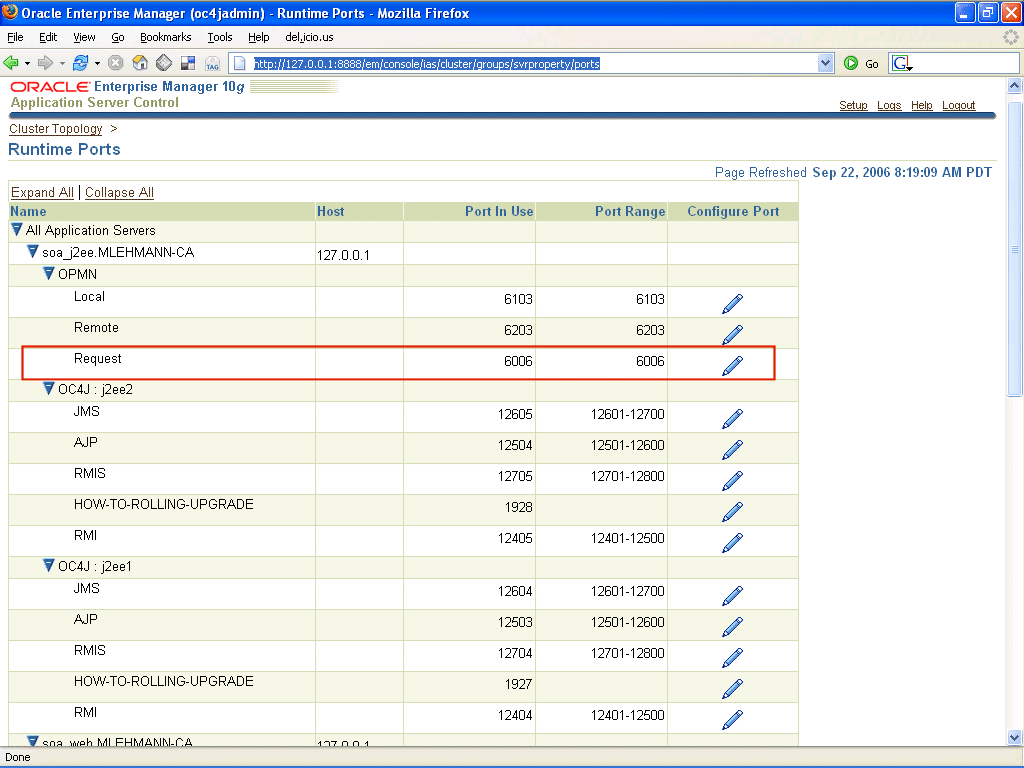
The pointing at the OracleAS environment is pretty straightforward. Aside from needing an installation of the application server (managed version), the main trick is finding out the OPMN request port from which iHat is able to discover the OracleAS. Fortunately in OracleAS 10.1.3.1 the port page for the application server returns like it was there in OracleAS 10.1.2 as shown below:


The port you are looking for is the request port, highlighted here. If you are running a multiple instance environment you will see several request ports - any one will do. Once you have it the steps to start up iHat are shown below - as you have can tell my JDK is located at d:\jdk150, I am running it on my local machine and I chose the instance running in my ORACLE_HOME soasuite:

set JAVA_HOME=d:\jdk150
set PATH=d:\jdk150\bin
set ORACLE_HOME=d:\soasuite
java -classpath %ORACLE_HOME%/opmn/lib/optic.jar;d:\iHAT\ihat.jar oracle.ias.opmn.ihat.WebServer 7778 127.0.0.1:6006

The 6006 port is my request port and 7778 is the port I chose to run iHat on. Once I have done that I simply point my browser at http://localhost:7778 and the iHat tool will appear. This does rely on Flash to be working in your browser which generally is not a problem.

Check it out - a handy tool for visualizing your application server environment :-)

Friday, September 08, 2006

Scaling OracleAS with Multiple JVMs

An hugely useful capability of Oracle Application Server that has been in the product for a dogs age is what is called multiple processes per OC4J instance. In OracleAS 10.1.2 you can find it hidden away in the documentation here http://download-west.oracle.com/docs/cd/B14099_11/core.1012/b14001/optj2ee.htm#CACCHACG
and here http://download-west.oracle.com/docs/cd/B14099_11/core.1012/b14003/midtiermanage.htm#CACCHFJC

In summary what it lets you do is take one configuration set of an OC4J (J2EE Server) and instantiate n - you choose the number - instances of JVMs running that configuration set. Rather than you as the administrator installing n instances of the application server or manually starting n JVMs, the application server does it for you automatically by taking the parameter you enter for number of JVMs and running the OC4J with that many JVMs.

The end result is on machines that have large numbers of CPUs, or have huge CPU capacity from multi-core technologies or appliances like what Azul provides, it is really trivial to have your application, if it is CPU intensive, suck up all those resources for a minimum of adminstrative overhead. Clearly it gives you some availability too but limited to a single machine - it seldom is used for this (or is as a by product), rather it is to optimize your hardware It is a single parameter - turn up the number of JVMs or turn them down. No install, no extra deployment. Nothing.

Personally this has always seemed like an undermarketed feature of Oracle Application Server as not only does it give "free" scalablity and works for any J2EE application, it is so easy to use relative to what I have seen elsewhere. It is hugely popular in the Oracle install base because one you see it in action it is a no-brainer to use. Here's how it works.

The following picture give a sense of what the number of processes feature does.


What you see in the outer dark grey box is an Oracle Application Server instance - this is just a process space in which OC4J runs in. For those in the know this could be thought of as an instance managed by the process manager, Oracle Process Manager (OPMN). Within that, the lighter grey box, you can see that there is a OC4J instance called OC4J_home. What that really is is the configuration set or a set of configuration files associated with this J2EE/Oc4J server - the start up parameters of the server, the J2EE applications deployed to it, the queues, topics, datasources and adapters configured. An Oc4J configuration instance, so to speak, though that is not official terminology.

The white box, in the center, is the actual runtime instances of OC4J_home configuration instance. Within it you can see that there are 4 processes. What that shows is 4 JVMs running the OC4J_home instance and using the identical configuration set underpinning OC4J_home. If I change a datasource in that OC4J_home instance configuration, all 4 OC4J_home runtime instances know about it. If I deploy a new application, all 4 OC4J_home runtime instances know about it. It do my configuration operations once and all instances pick them up.

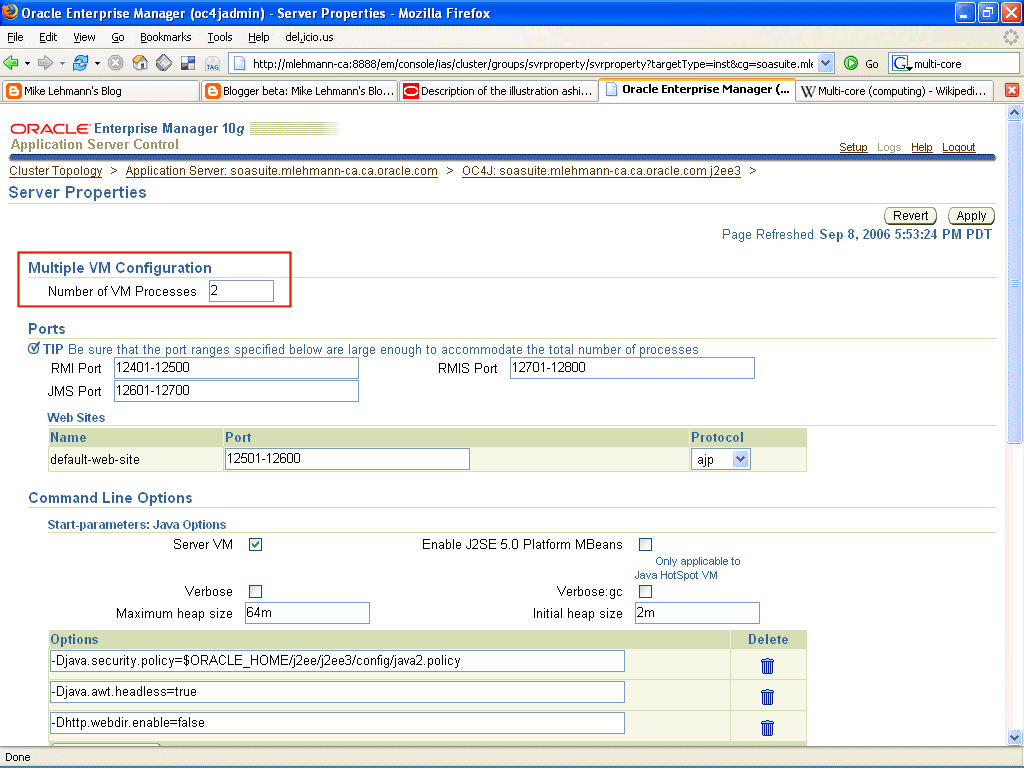
How do I turn this on? Well in OracleAS 10.1.3.1 I simple go to the server configuration page for a particular OC4J instance and tell the server how many JVMs to run like the picture below:

A single number and hit the apply button. That's it.

If I like editing XML I can go to <oracle_home>\opmn\conf\opmn.xml and edit the field called num_procs by the OC4J instance I am interested in but doing it from the console or scripting the change from JMX gracefully handles the startup of the changed configuration.

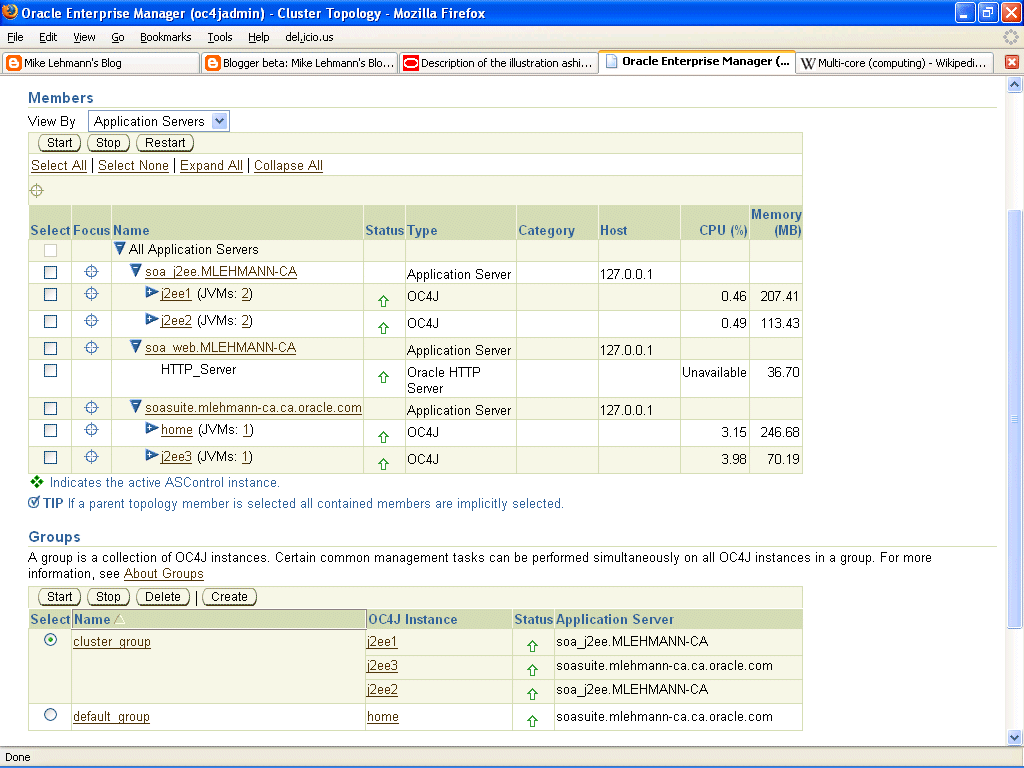
Once you have made your change, in OracleAS 10.1.3.1, you can go to any page and it will tell you how many JVM instances are running per OC4J instance as this picture shows (from the cluster topology page:


Pretty cool. Now in real life you frequently not only want to correctly utilize the CPU resources on your individual machines in the most efficient and operationally simply way possible (this being an example), clearly you also are concerned about availability should disaster strike and you need to fail over gracefully to other machines.

As the above picture shows most people actually run multiple OC4J instances with multiple JVMs and then distribute them across machines. The slightly expanded picture of the above screen below shows how not only can you use multiple JVMs on a single machine but you can pretty quickly and easily create groups of OC4J each with the tailored amount of JVMs spanning machine boundaries and application server instances.


Because I am but a poor man with only one machine I have to simulate 3 application server instances, one for two J2EE servers (soa_j2ee), one for an Apache HTTP server (soa_web) and another for what Oracle calls the SOA Suite (soasuite) containing our BPEL Process Manager, ESB, Rules engine, Web services manager amongst others. It is a contrived example but shows a simplified environment (imagining each of these instances on separate machines) that could deliver HA while utilizing machine resources effectively with the JVM feature.

At the bottom, which I suppose is a topic for another writeup, is the grouping feature which lets you group OC4J instances into a logical group that can span machines and OracleAS instances. Ironically, despite the seeming complexity of this setup, I would estimate it took me about 40 minutes to set it up - 2o minutes of which was running the one button click install while the bits were laid down on my machine.

From what has always been available as a simple 70 megabyte download - OC4J Stand-alone - (http://www.oracle.com/technology/tech/java/oc4j/10131/index.html) designed for developers (though many use it in production deployments because it is so lightweight and easy to use - corresponding to a single JVM in this writeup) to the full fledged managed version I am running here - Oracle Application Server - (http://www.oracle.com/technology/software/products/ias/soapreview.html) , this is not a bad story that I don't think is told very often or understood but at least a stab at it has been taken here :-)