Showing posts with label OPMN. Show all posts

Friday, November 03, 2006

Java Process and Instance Data From OracleAS

In the Oracle Application Server it is standard practice to set up a cluster with multiple application server instances hosting multiple OC4J instances each run atop of multiple JVMs.

Frequently when executing a specific application instance (servlet/EJB/Web service), it can be useful to have the exact location you are running - which Application Server instance, which specific OC4J instance and sometimes even the exact JVM instance. Sometimes you need this for your application to make some application centric decision, but more often it is useful for debugging when working in large clusters.

This blog is inspired by Steve Button's work where he built a very cool utility for session tracking in a cluster which implicitly revealed this information - he needed it himself while building it to debug as well to show to the user.

So how do you determine this on Oracle Application Server? There are several system properties that will help you out, specifically:

  • oracle.home - the physical directory in which your application server is installed
  • oracle.oc4j.instancename - the name of your OC4J instance
  • oracle.ons.instancename - your OracleAS instance name
  • oracle.ons.indexid - a combination of your OC4J instance name, the group it belongs to and the actual JVM executing it (for example if there is > 1 JVM you have configured as per my previous post on this topic)
On my cluster - I have a lot of AS and OC4J instances running :-) ... but in the picture below you can see that for this sample, I have highlighted the pieces of interest. In particular, one of the Oracle Application Server instances is named is soa_javaee.MLEHMANN-LAP. In that instance I have several OC4J instances, one in particular called javaee_1 that is configured to run on top of 2 JVMs. That OC4J instance is grouped together with several others in a synchronized group called javaee_group. If you look to the bottom of the graphic below, you will see this:


To try out these properties, I deploy a servlet to that OC4J instance javaee_1 and within that servlet I have the following code:

out.println("

Oracle home name: " + System.getProperty("oracle.home"));
out.println("

OC4J Instance name: " + System.getProperty("oracle.oc4j.instancename"));
out.println("

AS Instance name: " + System.getProperty("oracle.ons.instancename"));
out.println("

Instance:Group:JVM PID: " + System.getProperty("oracle.ons.indexid"));

What it spits out the other side in my browser is:

Oracle home name: D:\oracle\product\soa_javaee
OC4J Instance name: javaee_1
AS Instance name: soa_javaee.MLEHMANN-LAP
Instance:Group:JVM PID: java_ee1.javaee_group.2

Pretty useful information ... try it out :-)

Thursday, September 07, 2006

OracleAS 10.1.3 - Application Server Control

With Oracle Application Server 10.1.3, the architecture behind the management console of the server, Application Server Control (I use ASControl for short here), has changed. Rather than being installed with every instance of the Application Server that you install, it is a J2EE application and only enabled on a single instance within your application server cluster yet can manage all OC4J's within that cluster.

Normally after running the install of 10.1.3, you can go to http://<myhost>:<myport>/em and get access to it. If everything is set up right you will get an image like the one below:


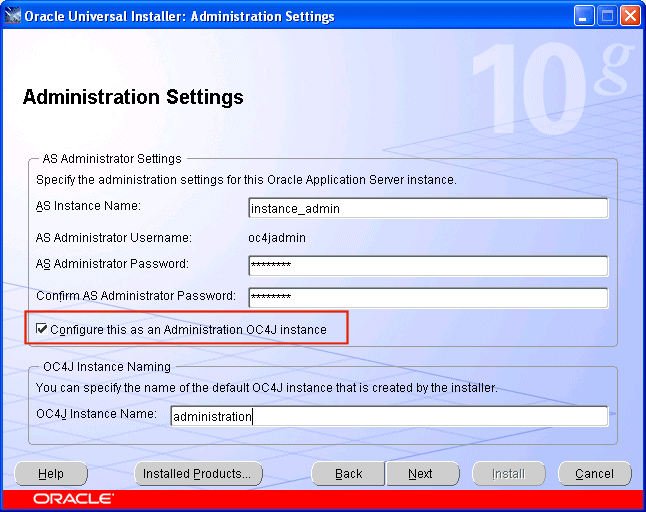
This is in the ideal world. However you can find yourself messed up a little here. In the one click install things generally work out of the box as ASControl is enabled by default. For the advanced install - where people often are setting up more complex topologies (multi-OC4J, special repository configurations etc), you will see that you must specifically select an instance to be the management instance as this screenshot shows from the OracleAS 10.1.3.1 installer:

Where the trouble comes in for many people is that they go down the advanced install route and forget to check this box and then wonder why they can't get to the management console ASControl from their browser.

It turns out to be pretty straightforward to fix but until you have run into it it can be hard to dig through the documentation (http://download-east.oracle.com/docs/cd/B25221_04/index.htm - see the Administrative Guide) to track down the exact steps. So to help - and remember this is dated to OracleAS 10.1.3.0 or later - here are some suggested steps.

1. First check to see what the status of the ascontrol application is to run the command:

<oracle_home>\opmn\bin\opmnctl @cluster status -app

This will produce a table showing what applications are deployed to your Oracle Application Server cluster and which ones are active. In mine I have cut out the line to show only the status of the ascontrol application.

|pid | name | state | classification | rtid | routable |
|PID | ascontrol | stopped | external | g_rt_id | false |


2. If it is down, you probably want to start it up on a specific instance to get access to it. Remember you only have to do this on one OC4J instance. A quick way of doing this is running the following command:

<oracle_home>\opmn\bin\opmnctl startproc process-type=home application=ascontrol

Note a couple of things here. First, I removed the @cluster attribute because I want to focus on a single instance within my cluster and second I used the process-type attribute to specifically name an OC4J instance. In this case I chose "home" as the OC4J instance I wanted to start ASControl on. When you run the status command you will be provided with a listing of all the OC4J instances in your cluster (a less verbose way to see the OC4J instances is to use opmnctl @cluster status and remove the -app option - this will eliminate the status of the applications)

The reason this command will work is that ASControl is always deployed to every OC4J instance but is designed to only be started on one.

3. If all has gone well executing the command opmnctl @cluster status -app will have at least one line that looks like the following:

| pid | name | state | classification | rtid | routable |
| PID | ascontrol | started | external | g_rt_id | false |


A quick a dirty way to make this happen independent of the command is to actually edit the xml files that the opmnctl command operates on ... the file is <oracle_home>\\j2ee\\config\\server.xml - now after that command you will see an entry for ascontrol something like this:

<application name="ascontrol" path="../../home/applications/ascontrol.ear" parent="system" start="true">

If you had manually editted this by hand, you would have had to bounce the server (opmnctl stopall followed by opmnctl startall are the quickest routes) to have it take effect whereas the command line approach dealing with the application only removes this issue.

4. Following 3, you may be lucky now and be able to go from your browser to http://<myhost>:<myport>/em.

However, you may find that your ASControl application was already started (you did not have to follow steps 1-3) and you still can't connect. Or after following steps 1-3 you still can not connect. You may have the problem that I am showing in step 2 but did note.

The last reason for not being able to connect to ASControl through a browser is generally due to something called the routing id. Routing ids are a new feature in OracleAS 10.1.3 that let you route HTTP requests to specific instances or groups of OC4J - see: http://download-east.oracle.com/docs/cd/B25221_04/web.1013/b14432/topology.htm#CHDBAAFI

If it is turned off for your application, even though your application is started, no requests will be routed there. It is great feature to have fine grained control on how HTTP requests are routed across clusters of OC4J but painful when you just want to connect to one application!

It is pretty straightforward to fix this by going to the file:

<oracle_home>\j2ee\<oc4j_instance_name>\config\default-website.xml

and editting the line:

<web-app application="ascontrol" name="ascontrol" root="/em" startup="true" routing="false">

to be:

<web-app application="ascontrol" name="ascontrol" root="/em" startup="true">

If you are an advanced OC4J user you may have a different Web site file name - I am just using the default default-website.xml.

5. To make sure this takes effect, it would be good to bounce the ASControl application again on the OC4J instance you have chosen to run ASControl (in my case home) by running the commands:

<oracle_home>\opmn\bin\opmnctl stopproc process-type=home application=ascontrol

<oracle_home>\opmn\bin\opmnctl startproc process-type=home application=ascontrol

6. By now going to the URL http://<myhost>:<myport>/em should give you some success. I hope!